Audio Priority Bar
Smart audio device management for your Mac. Never manually switch between speakers, headphones, or microphones again.
Why Choose Audio Priority Bar?
Automatic Priority Switching
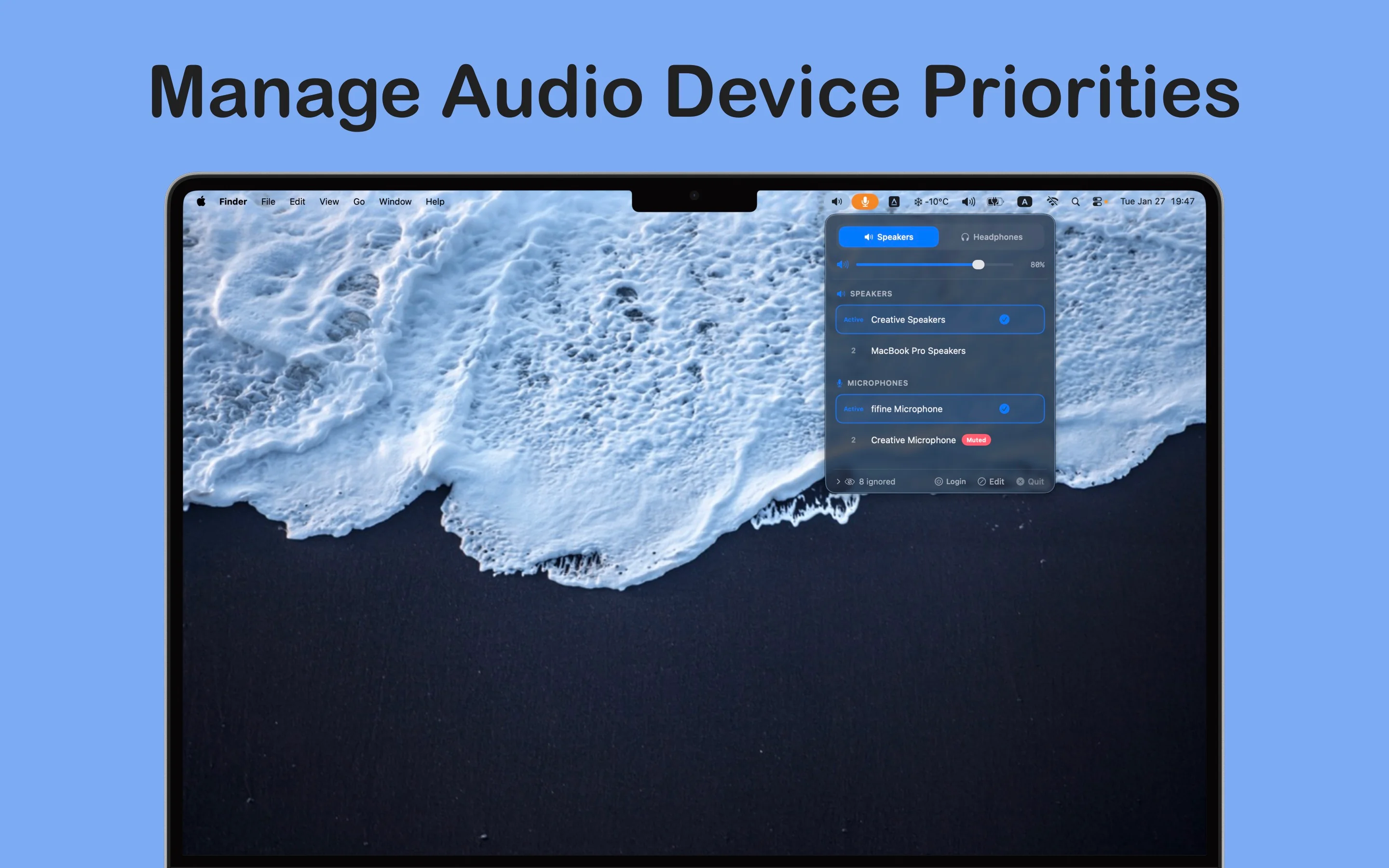
Set your preferred order for audio devices, and the app automatically switches to the highest-priority connected device. Connect your headphones, and they become active instantly—no manual selection needed.
Separate Modes for Speakers & Headphones
Organize your audio devices into two categories: speakers and headphones. Each category has its own priority list, so you can have different preferences for different scenarios. Switch between modes with a single click.
Manual Control When You Need It
Enable Custom mode to take full control. Browse all available devices and select exactly what you want, with auto-switching disabled. Perfect for when you need precise control.
Smart Device Memory
The app remembers every device you've ever connected, even when it's disconnected. Edit mode shows all your devices with "last seen" timestamps, so you can manage your priority list even when devices aren't currently connected.
Built-in Volume Control
Adjust volume directly from the menu bar with an intuitive slider or scroll wheel. See your current volume level at a glance.
Menu Bar Integration
Everything you need is just one click away in your menu bar. See your current mode, volume level, and quickly access all your audio devices without cluttering your dock or desktop.
Intuitive Interface
Drag to reorder devices, use up/down arrows for fine-tuning, or simply click a device to make it your top priority. Hide devices you don't use without removing them entirely.
Advanced Features
Per-category device hiding, device category management, mute status indicators for both input and output devices, real-time device connection monitoring, and launch at login option.
Screenshots
How It Works
Download & Install
Get Audio Priority Bar from the Mac App Store and install it on your Mac.
Set Your Priorities
Organize your audio devices into priority lists for speakers and headphones. The app will automatically switch to your preferred device when connected.
Enjoy Automatic Switching
Connect your headphones or speakers and watch as the app automatically switches to your preferred device. No more manual selection needed!